
On your vGPU server, launch the Knight Online client with Windows Remote Desktop (RDP), not with external connection tools like Parsec or AnyDesk. External tools use “virtual input” (a virtual keyboard/mouse); the Knight Online client rejects this, so you can’t type in the game or control your character. Because remote desktop passes through real keyboard and mouse input, the client works without a hitch.
On our servers, remote desktop is preconfigured to use the graphics card; you don’t need to do anything extra. Just follow the steps below.
Why not external software?
Parsec, AnyDesk and similar tools introduce a virtual input device to the server. The Knight Online client ignores this kind of virtual input, so you end up unable to type into the boxes on the login screen or move in-game. Remote desktop, on the other hand, passes real input straight through, so this problem doesn’t occur.
How to connect with remote desktop
- Type
mstscinto the Start menu and open Remote Desktop Connection. - Type your server’s IP address into the Computer box.
- Click Show Options in the bottom left.
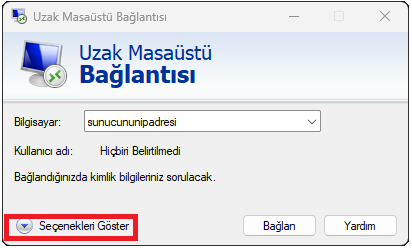
- Switch to the Display tab and pick your resolution with the slider.
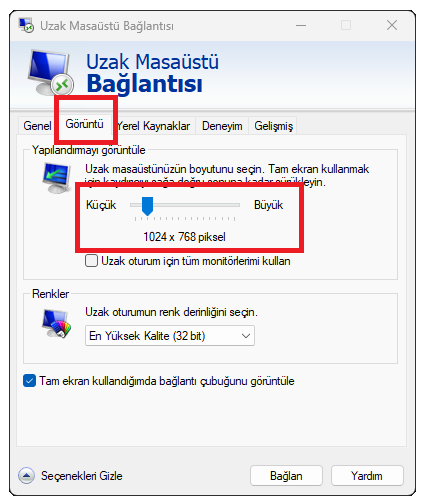
- Click Connect and enter your username and password.
Once connected, open the Knight Online client and play without any issues.
If you get stuck, get in touch and we’ll help.